walkthrough
RESEARCH NOTE
Always Downloading Write Up
| Write-up author: alexandriastech
Lessons Learned:
Identify data exfiltration using Wireshark by applying filters and extracting data from network communications.
Build a hypothesis like an analyst.
Description:
A SOC analyst has identified an abnormal volume of data exfiltrated from a server. It is believed that a malicious user is taking the company's data. Examine the traffic in the provided PCAP file and identify what data is being stolen.
View the challenge Always Downloading by Skillbit.
Prerequisites:
Steps:
Load the PCAP file into Wireshark.
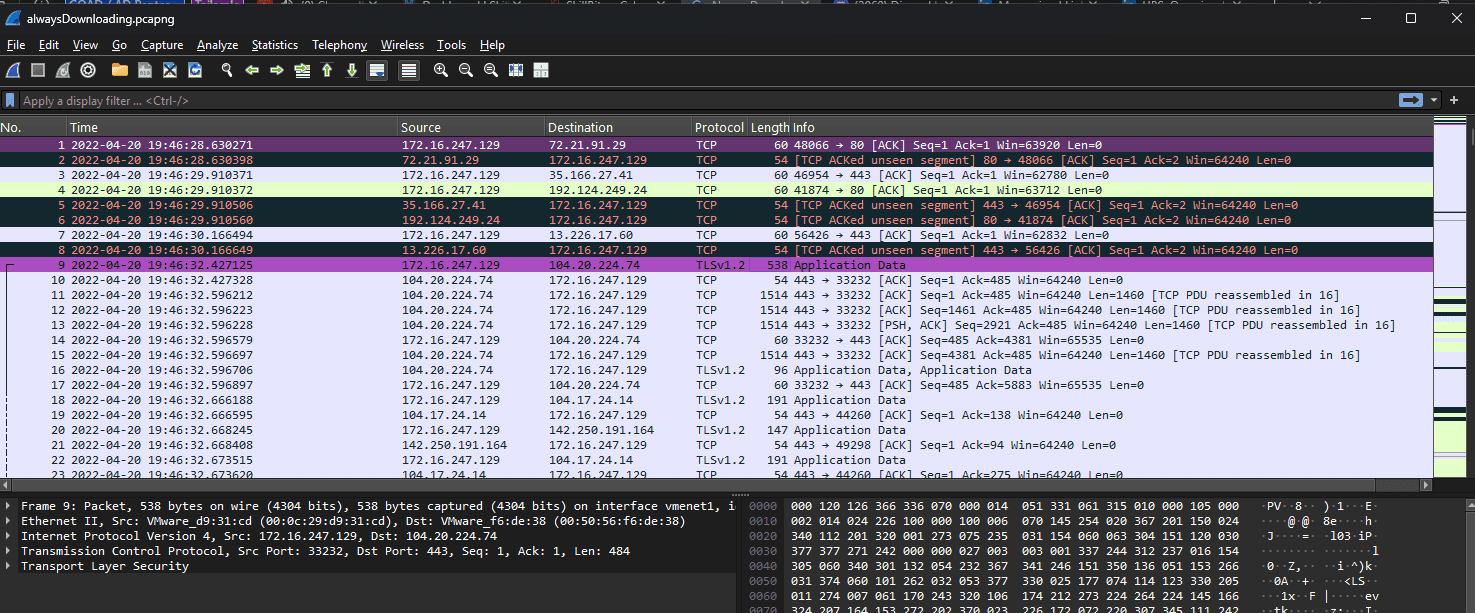
When analyzing a PCAP file, one of my first steps is to review the top talkers in the conversation.
Helps to identify what IPs are making requests
Which hosts / IPs are most active in conversation
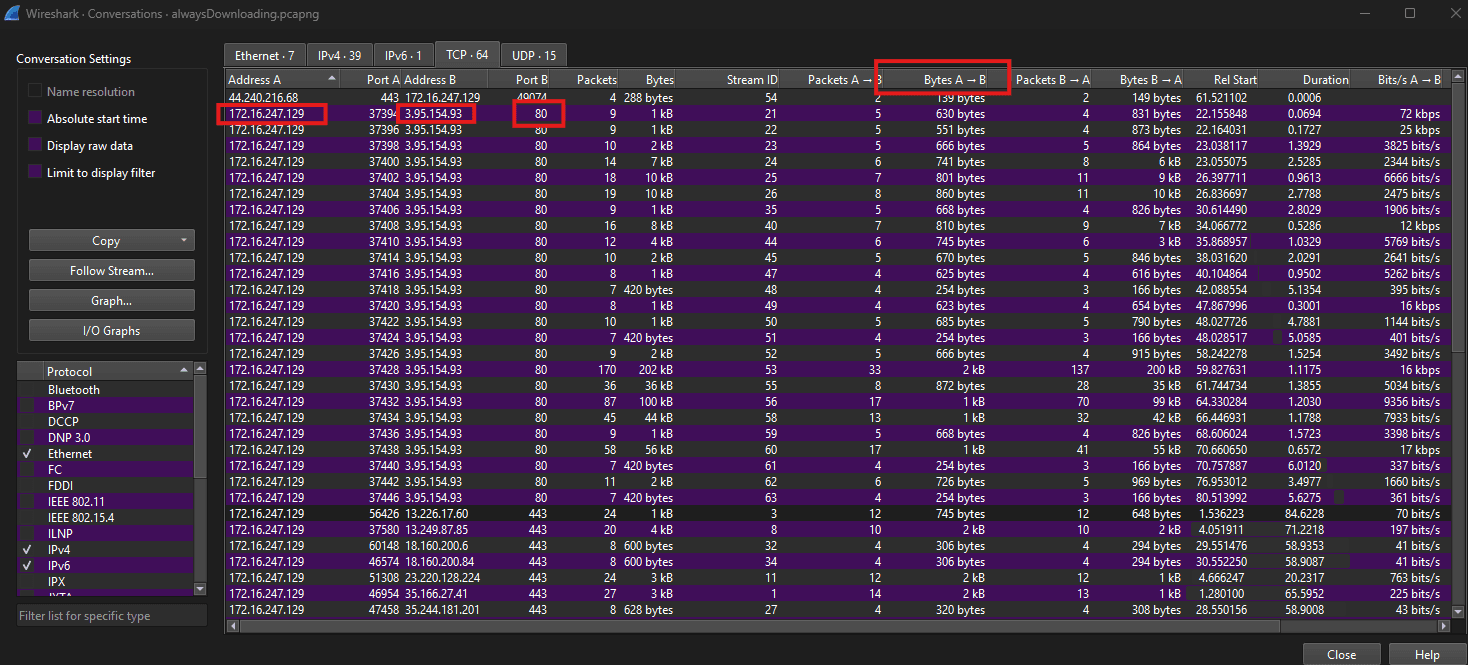
Identifying Conversations
By viewing Statistics > Conversations
We can observe that the IP address 172.16.247.129 has several TCP connections to IP 3.95.154.93 on port 80, which is associated with the insecure HTTP protocol.
By viewing the column Bytes A→B , we can see that Address A has made several requests to Address B.
Let’s look at the PCAP file some more to see what else we can infer.
Hypothesis:
A potential attacker using IP 172.16.247.129 is making several requests over insecure port 80.
Analyze HTTP Traffic
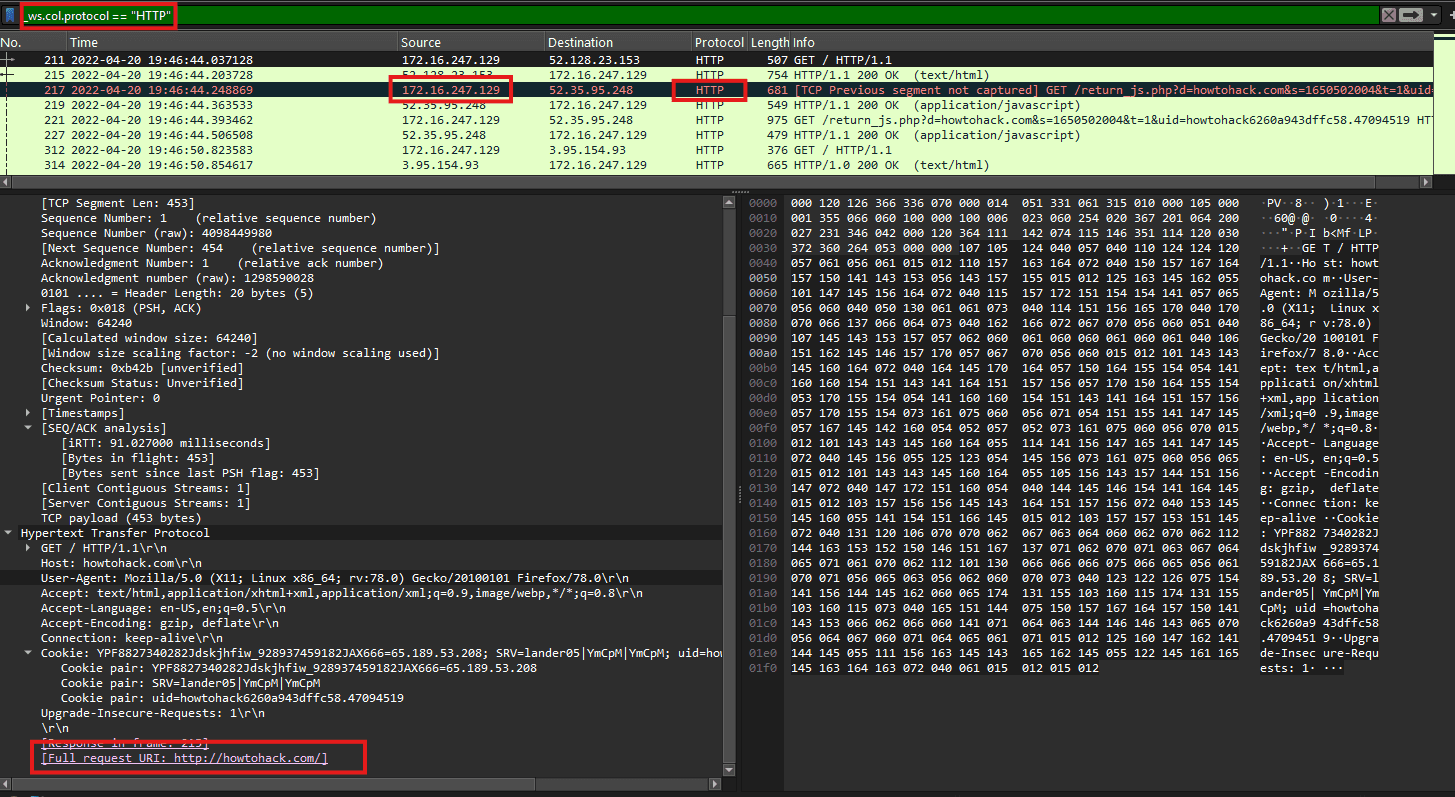
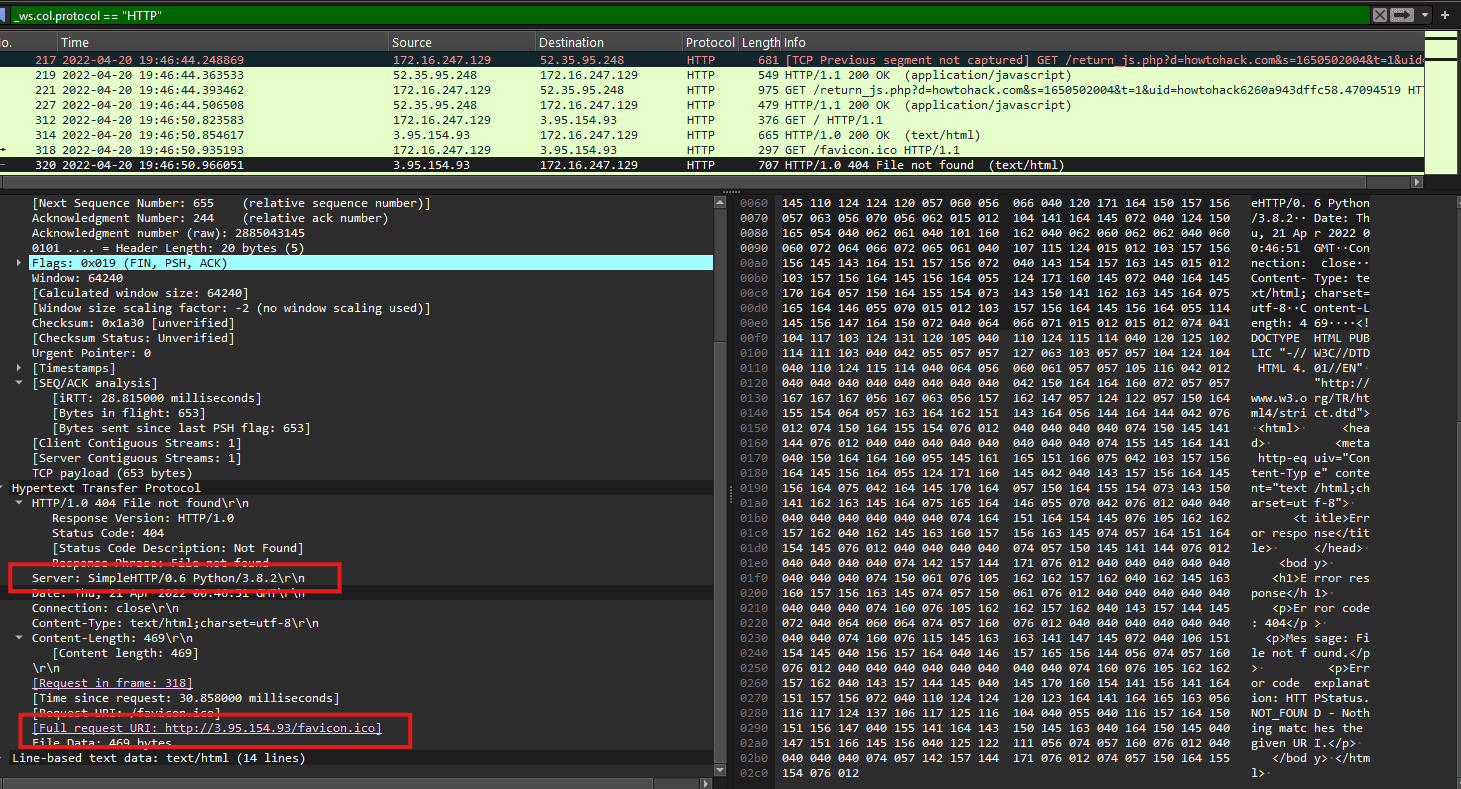
Let’s take a look at port 80 using the filter _ws.col.protocol == "HTTP".
We can observe that the IP address 172.16.247.129 made an HTTP request for the URL howtohack[.]com.
Hypothesis:
A potential attacker at IP 172.16.247.129 is making several requests over port 80, including a connection to a suspicious URL howtohack[.]com.
(Note: In the real world, we’d also use tools such as a sandbox to interact with said URL or validate its reputation using VirusTotal.)
By continuing the search, we can observe the same source IP making a request to http://3[.]95[.]154[.]93/admin/. Looking at the provided data, we can infer that this is an HTTP server.
In the logs, we see a 200 status code, indicating that the potential attacker successfully retrieved information from the server.
Hypothesis:
A potential attacker at IP 172.16.247.129 is making several requests over port 80, including a connection to a suspicious URL howtohack[.]com. The attacker identified an admin login page hosted at http://3[.]95[.]154[.]93/admin/.
Reconnaissance
Looking further into the logs, we can observe that the attacker is searching the directory for sensitive information.
Hypothesis:
A potential attacker at IP 172.16.247.129 is making several requests over port 80, including a connection to a suspicious URL howtohack[.]com. The attacker identified an admin login page at http://3[.]95[.]154[.]93/admin/ and accessed potentially sensitive directories, including “secrets”.

What did the Attacker View?
We now know the attacker has been accessing potentially sensitive files and directories.
We want to see what exactly those files were.
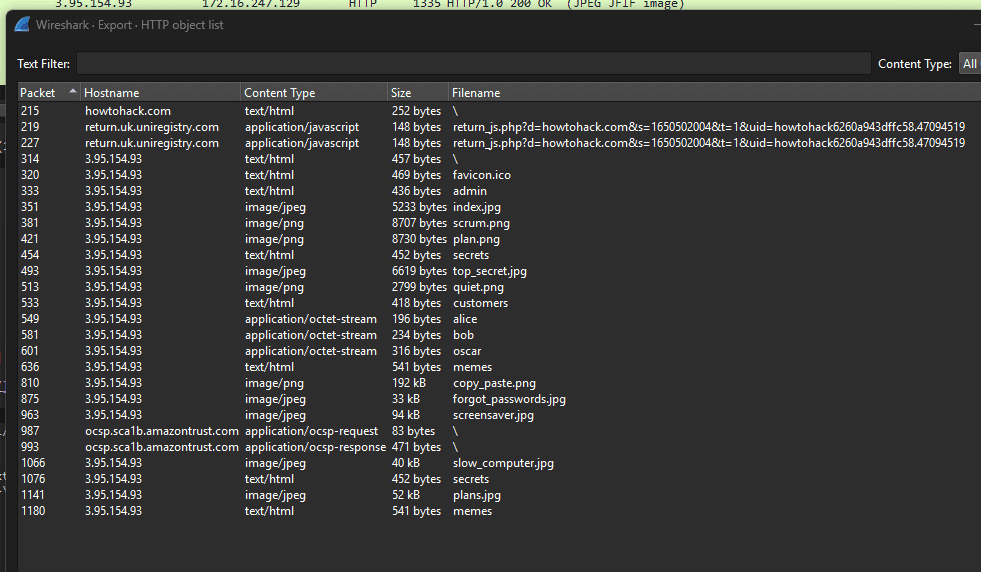
Wireshark has functionality that allows you to extract files from a PCAP file (with caveats).
In File > Export Objects > HTTP, you can see the list of files.
After saving the files, we can take a look at them on our machine.
Viewing the Accessed Files
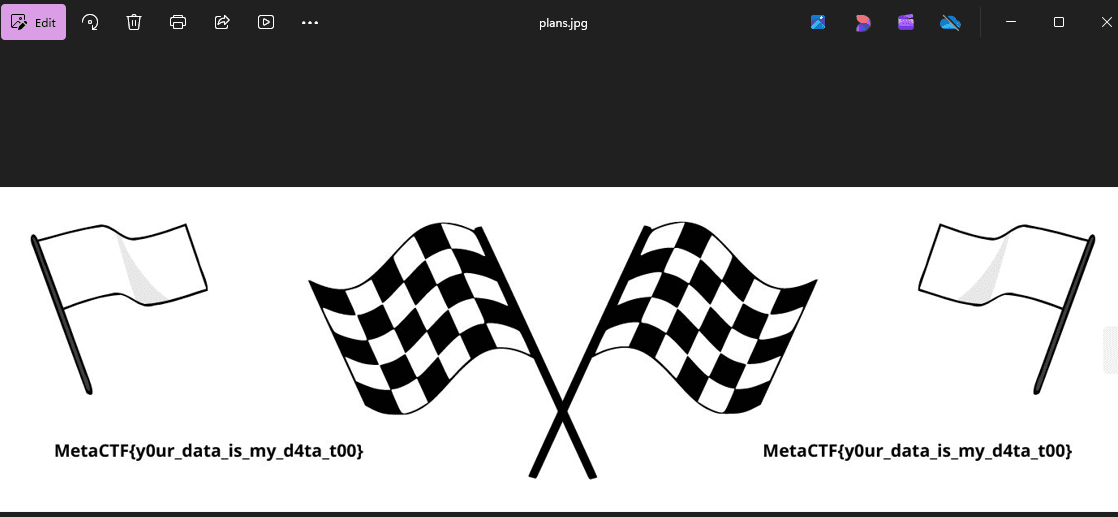
After reviewing the files (which include several .txt and .png files), we can now identify the flag or “sensitive” file the attacker has accessed.
Flag: MetaCTF{y0ur_data_is_myd4ta_t00}